
Skip to content

Backup & archiving

Back up the files you cannot recreate.

Scheduled, incremental backups from Windows, macOS and Linux, with restore points you can preview and verify. Archiving keeps older material out of the way without deleting it.

  • Windows, macOS and Linux
  • Incremental encrypted uploads
  • Point-in-time restore
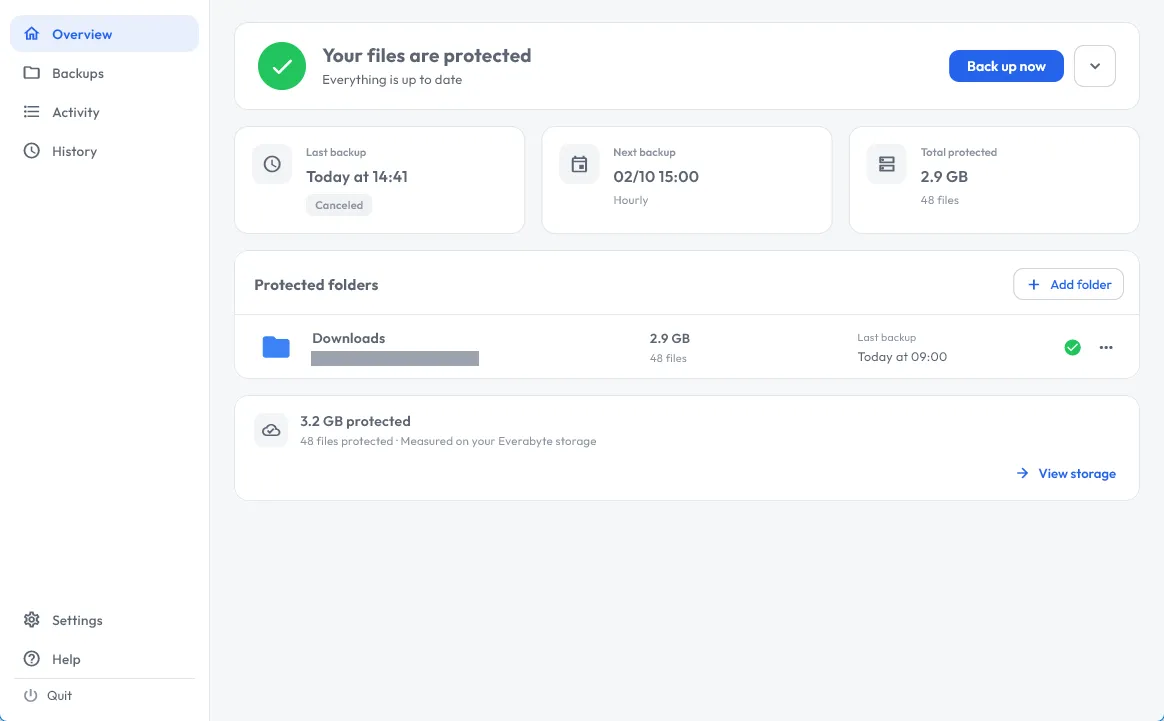
EverBox Desktop Agent overview screen showing backup status, protected folders and recent activity.
EverBox Desktop Agent — captured from the product. Folder names and figures are demo data.

Real EverBox Desktop Agent interface. Device name and version are from the captured build; no customer data is shown.

Two different jobs

Backup is not archiving

Both keep copies. They answer different questions: “can I recover this?” and “must I still keep this?”. Mixing them usually makes both harder.

Backup

Recover what changed

A backup captures copies on a schedule so a deleted, corrupted or encrypted file can be restored from an earlier point.

  • Runs on a schedule defined in the console
  • Keeps restore points for the retention you set
  • Restores a file, a folder or a selected point in time
Archive

Keep what must stay

An archive holds files you no longer work on but must retain, in a location that is separate from daily storage.

  • Moves completed material out of working folders
  • Retains versions and documentation
  • Can use Object Lock where configured

How a job runs

Select, configure, run, restore

The Desktop Agent executes the job, but the policy lives on the server. That keeps a fleet of laptops consistent.

  1. Select

    Choose the folders on the device that need protection. The job is defined in the Everabyte console and mapped to the local path.

  2. Configure

    Set the schedule, the retention period and the destination bucket. Exclusions keep caches and temporary files out of the backup.

  3. Run

    The Desktop Agent scans the folder, compares content hashes and uploads only what changed through the encrypted pipeline.

  4. Restore

    Preview a restore point, recover the files you need, then verify the result before closing the incident or the request.

File-level protection

The agent protects the files and folders you select. It is not a disk-image, bare-metal or virtual-machine backup product, and it does not claim to restore an operating system.

The Desktop Agent

Built for the devices people actually use

The agent runs as a single desktop application. API credentials are stored in the operating system keystore, and the app talks only to Everabyte — provider credentials never reach the device.

  • Incremental uploads. Content-hash manifest diffing means unchanged files are not uploaded again.
  • Encrypted transfer and storage. TLS 1.3 in transit, AES-256-GCM at rest through the Everabyte pipeline.
  • Server-defined schedules. Jobs, retention and destinations are managed centrally, not on each laptop.
  • Conflict handling. When a file exists in both locations, the agent can keep both versions instead of overwriting silently.
Download for Windows, macOS or Linux
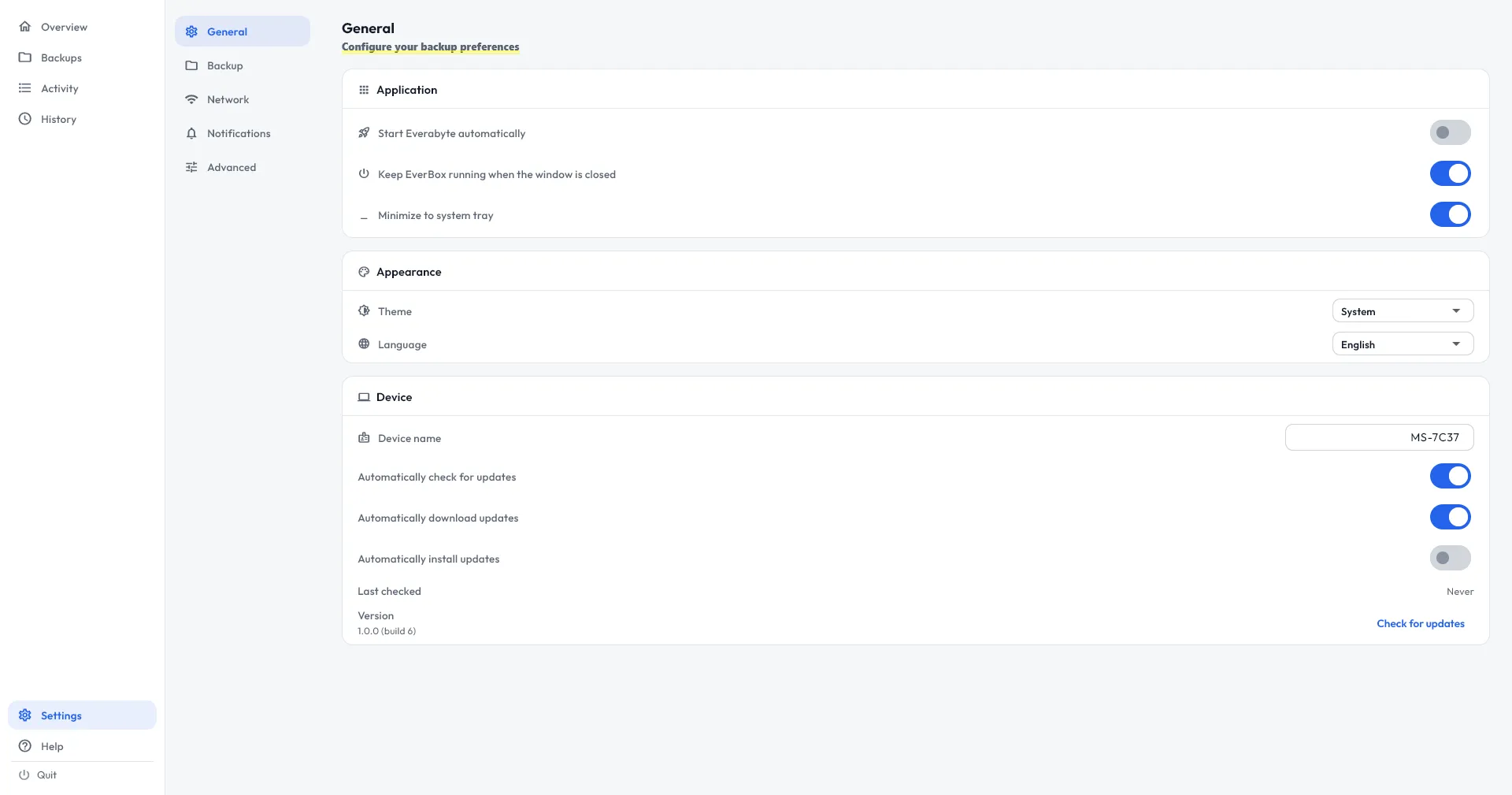
EverBox Desktop Agent settings screen showing startup behaviour, appearance, device name and update preferences.
General settings in the EverBox Desktop Agent: startup, tray behaviour, appearance and updates.
Credentials stay local

API keys are held in Windows Credential Manager, macOS Keychain or the Linux Secret Service — not in a configuration file and not in logs.

Recovery

A restore you can check

Recovery is a procedure, not a button. These are the four steps that make it defensible.

Restore points

Each completed run creates a point you can return to. Retention determines how far back the list goes.

Preview before restore

Compare the selected point with the current state so you know which files will be replaced or added.

Test restores

Run a restore to a separate folder and open the files. A backup that has never been tested is still a hypothesis.

Keep both

When the same path exists in the backup and on the device, choose to keep both rather than lose the local copy.

Restore point · Finance laptopIllustrative
Last run completed · 42 files changed02:10
Incremental 1.8 GB uploaded, 37.4 GB unchanged02:14
Restore preview 3 files to add, 1 to replace09:30
Test restore opened from a separate folder09:42
Retention: defined by planFigures are illustrative

Platforms

Three operating systems, one agent

The same application is packaged for Windows, macOS and Linux. Installation files and version notes live on the downloads page.

See installation packages
Backup policyScheduled server-side · agent executes
Daily pointsRetained
Weekly pointsRetained
Monthly archiveBy plan

Retention depth and archive options depend on the plan and the destination configuration.

Windows

Installer package for managed desktop fleets, with credentials held in Windows Credential Manager.

macOS

Application bundle with credentials stored in the macOS Keychain.

Linux

Binary for workstations and server-side file sets, using the Linux Secret Service.

Before you rely on it

Three limits worth stating

Selected folders only

If a folder is not in the job, it is not protected. Review the selection when a user changes role or device.

Retention is finite

Older restore points expire according to the retention you configured. Long-term legal archiving is a separate decision.

A backup needs a test

Schedule a periodic test restore and record the result. Without it, the first real recovery becomes the test.

Start with one device

Install the agent on a single workstation, run a backup, restore two files and compare them. That short exercise answers more than a feature list.

Protect the files before you need the restore

Tell us how many devices you manage, what must be recoverable and how long you need to keep it. We will help size the jobs and the archive.

Retention, capacity and Object Lock availability depend on the selected plan and configuration.